
Tools
Mixdeck
A native macOS audio mixer with virtual microphones. Combine interfaces, webcam mics and system or app audio, and send the result to Zoom, Google Meet, QuickTime and more.
Sources
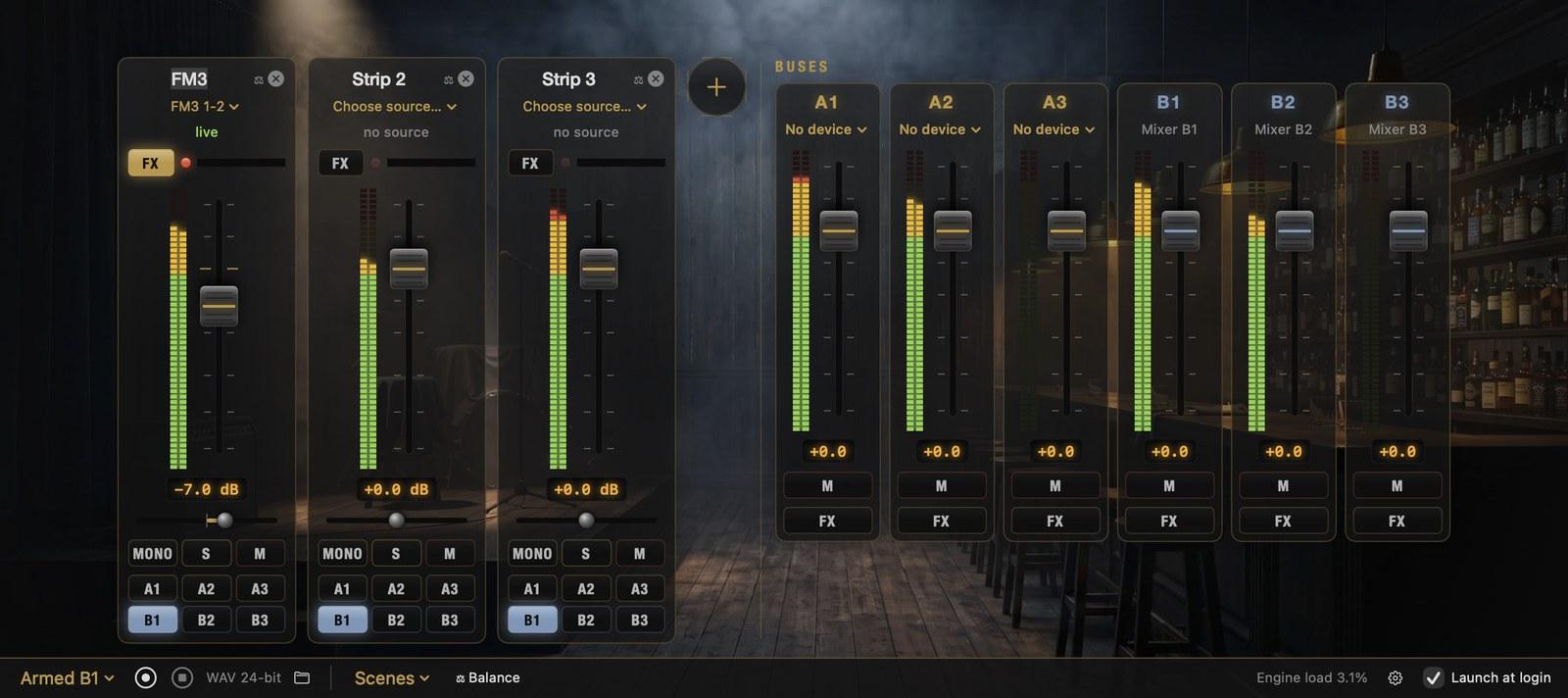
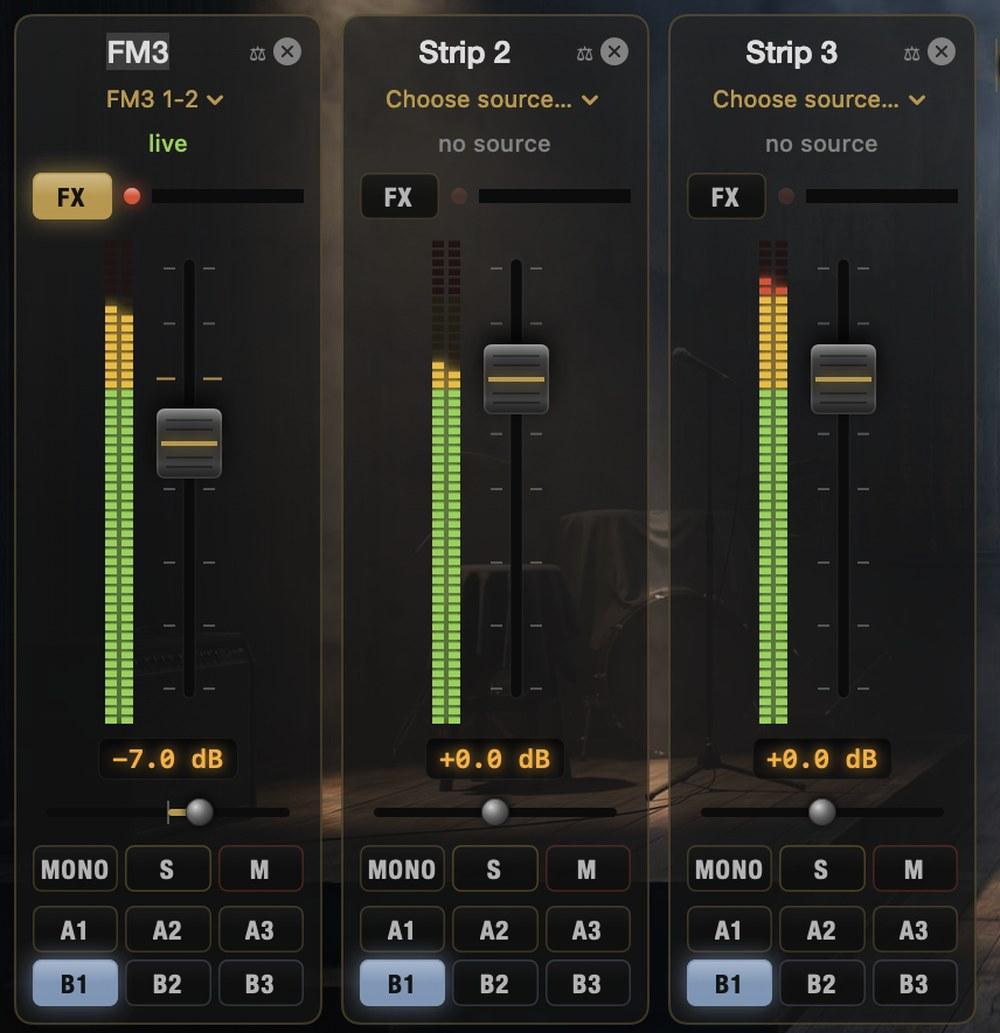
Strips: bring every source into one mixer
- ◆Each strip takes an audio interface input, a webcam or other microphone, the whole system's audio, a single app's audio, or a file.
- ◆Level meters, a fader with 1 dB trim, pan, mono, solo and mute on every strip.
- ◆Route any strip to any of the six buses with one click.
- ◆Add strips as you need them; there are up to eight.
Buses
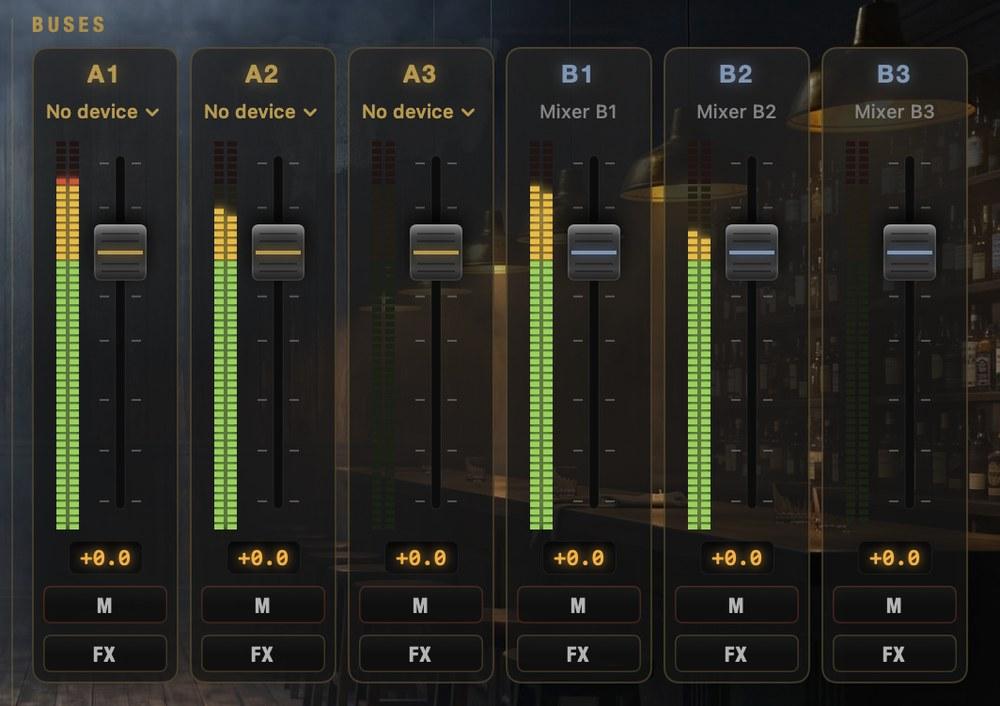
Three outputs for you, three virtual microphones
- ◆A1 to A3 send the mix to real output devices such as headphones and speakers.
- ◆B1 to B3 appear to every other app as microphones: Mixer B1, Mixer B2 and Mixer B3.
- ◆Pick Zoom, Google Meet, QuickTime or any recorder and select a Mixer microphone as its input.
- ◆Each bus has its own parametric EQ, limiter and Stereo or Mono mode.
Features
Built for a real workflow
Voice processing per strip
A full chain behind each strip's FX button: denoiser, gate, 3-band and 6-band parametric EQ, compressor with a transfer curve view, and a limiter, with presets.
Audio Unit plug-ins
Load your own Audio Unit effects, four slots per strip or bus, each with an edit window and bypass.
Balance
Mark strips and press Balance to measure and match their loudness. Fine 1 dB trims are kept through later balances.
Recorder
Arm buses and strips, then record. Every armed item is written to its own file, so you can mix later.
Scenes
Save and recall whole mixer states from the footer or the menu bar.
Remote control
A text command API and OSC for other software, MIDI learn for hardware controllers, and global keyboard shortcuts. The network controls are off by default and only listen on your own Mac.
Drift-free audio
Sources with different clocks are matched with an adaptive resampler, so long sessions stay in sync.
Menu bar and login
Lives in the menu bar and can start when you log in, so your virtual microphones are always there.
Example
Playing guitar on a call
- Add a strip for your audio interface and another for your voice microphone, and send both to B1.
- Send the call app's own audio to an A bus (your headphones), not to B1, so the other people never hear themselves back.
- In Google Meet, open Settings, Audio, Microphone, and choose Mixer B1 (Virtual).
- Use B2 for a second mix, for example a full mix for a recording while B1 carries only the speech and instrument for the call.
Free and open source
Get Mixdeck
Mixdeck is released under the MIT licence and needs macOS 14.4 or later. There is no prebuilt download: the virtual audio driver is signed on your own Mac, so you build and install it from source. The script does it all in one go.
- Install Apple's command line developer tools if you do not have them (the script offers to).
- Download or clone the project from GitHub.
- In Terminal, in the project folder, run
./install.sh. It builds the app and the driver, then asks for your admin password to install the driver, which briefly restarts macOS audio. - Open Mixdeck from Applications and allow Microphone and System Audio Recording access when macOS asks.
Mixdeck installs an audio driver and is provided as is, with no warranty. The installer can also remove everything again with ./install.sh --uninstall.